Notification Configuration
Better Player supports native platform notifications on mobile (Android and iOS), allowing users to control playback from their device's lock screen or notification area. On desktop (macOS and Windows) and Web, playback continues in the background when handleLifecycle is set to false.
| Android | iOS |
|---|---|
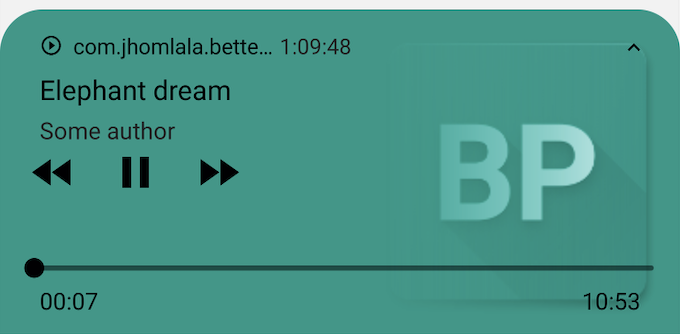 | 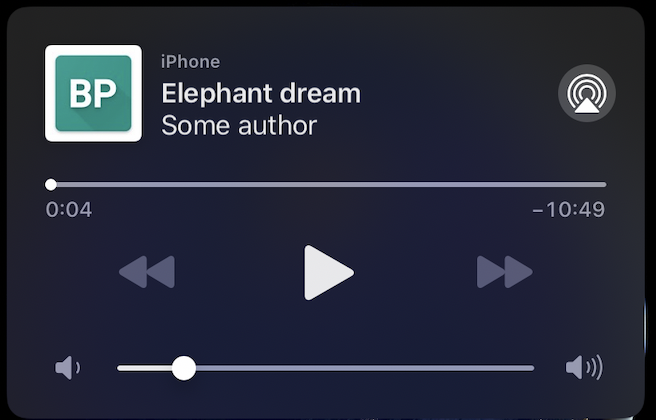 |
Implementation
Notifications are configured using the notificationConfiguration parameter within the PlayerDataSource.
PlayerDataSource dataSource = PlayerDataSource(
    DataSourceType.network,
    Constants.elephantDreamVideoUrl,
    notificationConfiguration: NotificationConfiguration(
        showNotification: true,
        title: "Elephant's Dream",
        author: "Blender Foundation",
        imageUrl: "https://example.com/poster.jpg",
        activityName: "MainActivity", // Android only
    ),
);
Configuration Parameters
showNotification: Enables or disables the notification feature.title: The primary text displayed in the notification (e.g., video title).author: The secondary text displayed in the notification (e.g., artist or channel).imageUrl: The thumbnail image displayed in the notification (supports both network URLs and local files).activityName: (Android only) The name of the activity to open when the notification is clicked.
Advanced Considerations
Background Playback
To allow playback to continue after the user leaves the application, ensure handleLifecycle is set to false in your PlayerConfiguration.
Setting handleLifecycle: false is essential for audio-only apps or video apps that support background audio, as it prevents the system from automatically pausing playback when the app is minimized.
Android OS Limitations: Better Player does not run a true foreground Service. On Android, the OS may kill background apps after 5-10 minutes of screen lock to save battery. To prevent this, you can request the user to ignore battery optimizations for your app using the permission_handler package (Permission.ignoreBatteryOptimizations.request()) and adding REQUEST_IGNORE_BATTERY_OPTIMIZATIONS to your AndroidManifest.
Custom Activity Name (Android)
By default, Better Player tries to launch the main activity when the notification is tapped. If your app has a specific entry point or you want to route the user to a specific screen, provide the activityName (e.g., "com.your.package.MainActivity").